
When you give your phone to a friend or install a new app, you might not think about the risks. Your photos, location, or banking info could be at risk. It’s important to understand that mobile app security is key to protecting your personal life.
App protection is like wearing quick, practical armor. You can use features on devices like the Google Pixel 8 Pro or Samsung Galaxy S24 Ultra to lock apps or tools. This gives you control when someone uses your device or when an app asks for too much access.
Secure apps also mean reading terms and watching permissions. Avoid using rooted or jailbroken phones. Ace Mobile’s Terms explain how apps collect data and use third-party services like Google Play Services and Firebase. Always know what you agree to before tapping Accept.
In this guide, you’ll learn easy mobile security tips. We’ll cover permissions, app updates, and network safety. You’ll discover how to keep your device safe without making it a fortress.
Key Takeaways
- Mobile app security starts with attention: read terms and permissions before use.
- App protection can be immediate—use app pinning and locks on modern Android phones.
- Avoid jailbreaking or rooting to reduce exposure to malware and failures.
- Secure apps often rely on third-party services; know which ones an app uses.
- Follow mobile security best practices: review permissions, update apps, and limit sharing.
Why Mobile App Security Matters for Your Phone
Apps control your life. You use them for banking, messaging, and storing photos. This makes your phone a target for threats that steal time, money, and privacy.
Malware can sneak into your phone through fake apps or malicious links. Once inside, it can steal your contacts, log your keystrokes, and spread to other apps. Data leaks happen when apps share too much or store sensitive information insecurely.
Attackers often go for the big scores first. They might steal your contacts for scams, photos for blackmail, or location for stalking. Losing your financial data can hurt your credit and lead to unauthorized purchases.
Rooting or jailbreaking removes important security features. This makes your phone more vulnerable to malware and data leaks. Some apps may not work right on rooted or jailbroken devices.
Locking and pinning are just basic security measures. A PIN or fingerprint can stop casual snooping, but a determined attacker can breach your data. App pinning helps when you lend your phone to someone else, keeping your messages and photos safe.
Most platforms offer tools to protect you. Android lets you check and change app permissions. Regularly reviewing camera, microphone, and file access can help prevent data leaks and limit malware damage.
Developers often use third-party services for analytics and ads. This can create hidden risks. Keep your apps updated and avoid rooting or jailbreaking to strengthen your device’s security.
Understand App Terms, Permissions, and Privacy Policies
When you download an app, you agree to its terms and conditions. These documents outline what the developer can change and what rights you give up. They also explain how updates might affect your access to features or data.
Look for clauses about ownership, charges, and contact details in the terms. Some developers provide contact emails for questions about changes or data access. Be cautious of language that lets the developer make changes or add fees without your consent.
Third-party SDKs often run in the background to provide analytics, ads, or crash reporting. Many apps use AdMob and Firebase. Knowing which SDKs are used helps you understand how your information is shared.
SDKs like Google Analytics for Firebase or Firebase Crashlytics collect data on how you use the app. Ad networks, such as AdMob, may use identifiers for advertising. This information is outlined in the privacy policy, so compare it to the app’s permissions.
To see what permissions an app requests, go to Settings > Apps > [app] > Permissions. You’ll find options like camera, microphone, location, files, contacts, and SMS. Use the Permission manager to check who has access and pause unused apps.
Be wary of apps that always use your location or request full file access without a clear reason. If an app uses many SDKs but doesn’t explain its privacy practices, ask the developer for details.
Having granular permission options gives you control. Choose “Allow only while using the app” or “Ask every time” for camera and location when possible. This reduces background data collection and limits what analytics tools like Firebase might see.
If you notice a mismatch between the app terms and privacy policy, it’s a red flag. Developers may list services like Google Play Services, AdMob, Facebook, Unity, AppLovin, or StartApp in their terms. Each service has its own rules about data collection and retention.
If you’re unsure, contact the developer using the address in their terms. Ask specific questions about which third-party SDKs are active, what data they collect, and how long that data is kept. Clear answers help you decide if the app meets your privacy expectations.
Locking and Pinning: Quick Ways to Restrict App Access
You might want to keep strangers or kids from accessing your apps. Luckily, there are built-in controls and trusted tools to help. These methods can protect your sensitive apps, reduce distractions, or let you lend your phone without worry.
Difference between app pinning and app locking
App pinning, or screen pinning on Android, locks your device to one app. This way, a person can’t switch to other apps or the home screen. On the other hand, app locking requires a PIN, pattern, or biometric to open a specific app. But, it won’t stop someone from leaving that app and exploring your phone.
When to use built-in Android pinning vs. third-party app locks
Use Android pinning for a quick, temporary lock. It’s easy to enable and perfect for when you lend your phone or watch a child. Just go to Settings > App Pinning, open the app, then pin from Recent Apps.
For more features like scheduled locks or per-app timers, choose third-party app lock apps. Look for well-known vendors with many installs and clear privacy policies. But, be careful with third-party apps if your device is rooted or jailbroken.
Best practices for PINs, patterns, and biometric locks
Choose a complex PIN or a long password instead of a simple code. Avoid obvious patterns and repeated digits. Use fingerprint or face unlock when available for speed and convenience.
Use biometrics with a strong fallback PIN or password. Biometrics are fast but can be bypassed if your device is compromised. Pair app locking or pinning with strict permission settings and automatic permission removal for unused apps.
Secure Your App Permissions Like a Pro
You have control over who sees your data. Learning to manage app permissions on Android is key. By making small changes in Settings, you can avoid big privacy issues. This keeps apps like Google Maps and Instagram from accessing more than they should.
How to check and change app permissions on Android
Start by opening Settings. Then, tap Apps or See all apps. Choose an app and tap Permissions. You can then decide to Allow or Don’t allow a permission.
For a detailed view, go to Permission manager under Security & privacy > Privacy. Here, you can see all apps with a specific permission. To remove access for unused apps, pause their activity.
Permission types that deserve extra scrutiny
Some permissions are common. But others are more serious. Be careful with camera permission, as it can capture photos and video. Also, watch out for microphone access, as it can record without your knowledge.
Location permission is another area to focus on. Choose settings that match the app’s purpose. Apps that read all files can access your documents and photos. So, check apps like banking, ride-share, and social media for their access requests.
Use cases for “Allow only while using the app” and “Ask every time”
“Allow only while using the app” is good for apps that need occasional access. This includes navigation or barcode scanners. For apps like Maps or delivery services, grant location permission only when active.
For features you rarely use, like microphone access for voice notes, choose “Ask every time”. This way, you can control access when needed.
Global toggles under Security & privacy let you disable camera permission or microphone access across the device. This is useful when you want strong privacy. Locking or app pinning adds extra security, but it’s not a replacement for managing permissions.
| Permission | When to allow | Recommended Android setting |
|---|---|---|
| Camera permission | Photo apps, video calls, QR scanners | Allow only while using the app |
| Microphone access | Voice messages, calls, voice search | Ask every time or Allow only while using the app |
| Location permission | Maps, delivery, local weather | Allow only while using the app; All the time only for essential services |
| Files / Storage | File managers, photo editors, backup apps | Grant least privilege; avoid “access all files” unless required |
| Contacts & Call logs | Dialers, messaging apps that sync contacts | Allow only when feature is actively used |
Keep Your Device and Apps Updated to Close Cracks
You want your phone to run smoothly and stay safe. Regular security updates fix holes that hackers use. App updates also fix bugs, handle permissions better, and work well with the latest Android updates.
It’s important to watch for updates from developers. Companies like Google and Samsung share what’s new in their app pages. Ace Mobile might change what your phone needs or stop supporting older Android versions. So, it’s key to update your apps to keep using them without surprises.
Enable automatic updates for apps you trust, like banking and login tools. This helps avoid risks from delayed patches. But, always check the changelog for any new permissions or unexpected integrations.
- Check Play Store release notes before installing big updates.
- Review the changelog for permission changes or new third-party SDKs.
- Keep device firmware current to benefit from built-in protections, like improved pinning and permission controls on Pixel and newer devices.
If an update looks risky, pause it and read the developer’s new Terms and effective date. Developers will post new Terms and tell you to review them when they change. If an app stops supporting your Android version, think about upgrading your device or switching to a supported app.
| What to Monitor | Why It Matters | Action You Can Take |
|---|---|---|
| Security updates for OS and apps | Fixes vulnerabilities that attackers exploit | Install promptly or enable automatic updates for trusted apps |
| App updates and changelog details | Shows new features, permission changes, and bug fixes | Read the changelog; reject updates that request risky new permissions |
| Android updates and device compatibility | Introduces privacy controls and platform-level fixes | Keep firmware current; verify app support for your Android version |
| Terms updates from developers | May change data use or service availability | Check effective dates and review Terms before accepting major updates |
Use App Store Hygiene to Avoid Risky Downloads
You want apps that behave and respect your data. Keeping your device clean helps avoid harmful apps. A quick look at the app listing can tell you a lot about its safety.
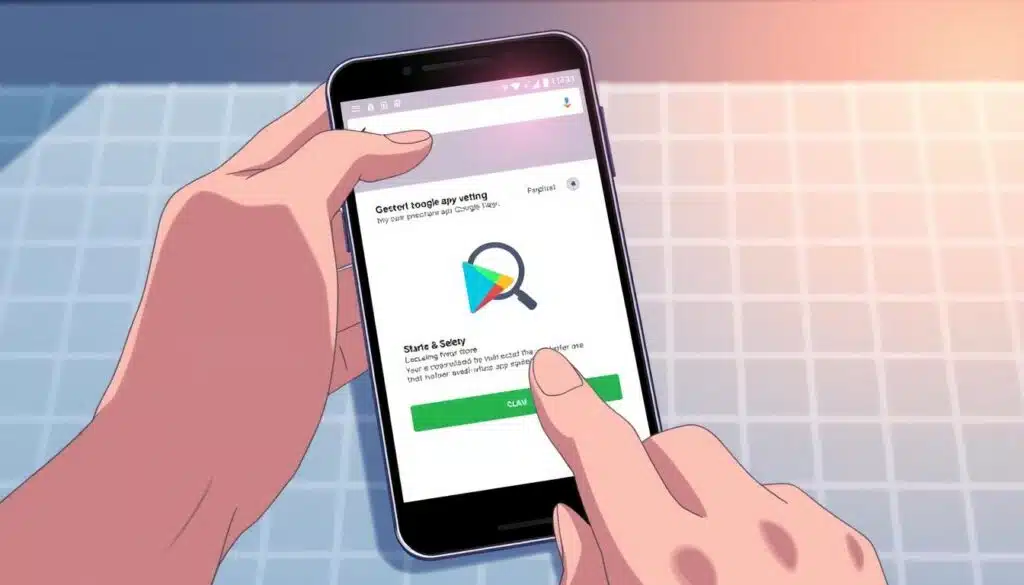
First, check the developer’s details and the app’s reputation. Look for a real company name and recent updates. Also, check if the developer responds to reviews.
Spotting malicious or impersonator apps in the Play Store:
- Compare the developer name to the official brand. Impersonators use tiny spelling changes.
- Watch for poorly written descriptions or low-quality screenshots; those are common with fake apps.
- Check how often the app is updated. Long gaps or no changelog can signal abandonment or risk.
Review signals that matter:
- App reputation is shaped by ratings, review content, and response patterns from the developer.
- Install numbers give context. Millions of installs don’t guarantee safety, but single-digit installs deserve scrutiny.
- Read a sample of reviews, not just the top praise. Look for consistent complaints about permissions or crashes.
When to verify developer contact info and Terms & Conditions:
- Open the Play Store listing and find developer contact. Send a simple question to confirm the address works. A valid developer contact boosts confidence.
- Follow the Terms and Conditions link to check dates and data use details. Clear T&C with an effective date is a positive sign.
- If an app requests broad file access or always-on location without explanation, pause and verify before granting runtime permissions.
If you want to avoid fake apps, prefer well-known developers like Google, Microsoft, Adobe, or established brands in each category. When in doubt, wait, search for independent reviews, or choose an alternative with a stronger app reputation.
Network Safety: Protect Data in Transit
You use apps that need the internet to work. This makes choosing a network very important. It helps keep your data safe when you check your balance or move money.
Try to avoid public Wi‑Fi whenever you can. If you must use it, like at a café, use a trusted VPN for mobile. This encrypts your traffic and keeps your information safe from hackers.
Avoid public Wi‑Fi or use a trusted VPN for sensitive app usage
Public Wi‑Fi can be risky. It can let hackers listen in and steal your login details. A good VPN for mobile creates a secure tunnel. This keeps your emails, files, and banking actions private.
Which apps need extra network attention (banking, email, file managers)
Make sure to use a secure network for apps that handle money, messages, or personal files. The network and app both play a role in keeping your data safe. A weak network can compromise even the best app security.
Use multi-factor authentication, keep your apps updated, and check their permissions. This way, even if hackers get into your network, they won’t be able to easily take over your accounts.
How third-party services can increase exposure over networks
Many apps use third-party SDKs and cloud platforms for analytics and crash reporting. These services send data across networks, making it easier for hackers to find vulnerabilities. Unless developers use strong encryption and limit data sharing, your information is at risk.
Always read an app’s privacy and SDK disclosures. Also, check out resources like Protecting your information and data when using apps. This helps you understand which data flows need extra protection.
- Turn off automatic connections to unknown Wi‑Fi networks.
- Use a VPN for mobile banking and email when away from home.
- Limit app permissions for sync and background transfers to reduce data in transit.
- Keep apps patched so TLS and other transport protections stay current.
Account Security: Strong Auth and Session Management
You don’t need to make your phone as secure as Fort Knox. Start by using strong passwords and add two-factor authentication. This combo blocks casual and serious hackers. Use app pinning or biometric locks with app passcodes to protect your device if it’s stolen.
Managing sessions is key. Good session management stops attacks when devices are lost or service terms change. Use non-persistent cookies and Secure flags to lower risks. For more on session management, check out the OWASP guide at session management best practices.
Enable extra protection
Turn on two-factor authentication wherever you can. Add app passcodes for apps like banking or email. This adds an extra barrier before data is shared. Physical locks and two-factor authentication protect against different types of threats.
Revoke and review active sessions
Check your account settings for active devices and revoke unknown ones. If a device is lost or dead, revoke access. This stops lingering sessions and reduces the risk of account issues.
Password storage choices
A password manager generates and syncs strong, unique passwords. It’s better than using weak passwords and saves you from remembering too many. But, it has a single master-password risk, so protect it with two-factor authentication.
Built-in credential storage is convenient and ties into device encryption and biometrics. Check the vendor and OS for export rules before relying on it.
| Feature | Password Manager | Built-in Credential Storage |
|---|---|---|
| Password strength | Generates complex, unique passwords automatically | May save strong passwords, but generation often manual |
| Cross-device sync | Yes, typically across platforms with encryption | Varies by vendor; may be limited to the same ecosystem |
| Master access risk | Single master-password is critical; mitigate with 2FA | Depends on device security and backup/export policies |
| Autofill convenience | Seamless across apps and browsers with secure prompts | Often integrated, may have tighter OS controls |
| Vendor trust | Relies on third-party security and transparency | Relies on device maker and OS updates for protections |
Protecting Your Files and Data within Apps
Apps make life easier but handle your personal info quietly. It’s important to know where your photos, documents, and contacts are. A quick check of app settings helps you control data storage and syncing.
Understand how apps store and process personal data
Apps like EX File Manager or Google Drive store data locally and online. Always read the app’s privacy policy and the Play Store listing. This tells you if data is encrypted or shared with others.
If an app stops working, your data might be lost unless you delete it.
App settings to limit data access and auto-backups
Changing app settings can reduce risks. Turn off auto-sync or backups if you’re unsure about the destination. On Android, check Files and Photos permissions and limit camera or storage access.
When to uninstall vs. disable an app to protect your files
Uninstall apps that ask for too much access if you don’t need them. Uninstalling removes most data and stops backups. If you can’t uninstall a pre-installed app, disable it to reduce risks.
Before uninstalling, check if the app stored data online. Log in, delete files, and follow the developer’s steps to delete your account. This prevents data from being left in backups or storage.
Local app locks or pins only secure surface-level access. They don’t change disk storage. For better protection, choose apps that encrypt files and confirm backup locations.
Third-Party SDKs and Vendor Risks in Apps
When you install an app, you get more than what you see. Many apps use third-party SDKs for analytics, ads, and crash reporting. These tools help developers work faster and add features, but they can also take control of your data.

Common SDKs to watch for: analytics, ads, crash reporting
Many apps use big names like Google Play Services, AdMob, and Firebase. Analytics SDKs track how you use the app. Ad SDKs, like AdMob, might ask for your ad ID to show you ads. Crash reporting tools send error reports that could include your personal info.
How third-party Terms and Conditions affect your privacy
Every vendor has its own rules for how they handle your data. Developers often link to these rules in their app listings. When an app uses Firebase, for example, your data might go to Google, not the app’s privacy policy. This can make it hard to know who’s responsible if your data is mishandled.
Questions to ask developers about third-party integrations
- Which SDKs are integrated and why?
- What data does each SDK collect and share?
- Are data transfers to vendors encrypted in transit and at rest?
- Can users opt out of analytics or targeted ads?
- How long do vendors retain telemetry and identifiers?
Look at the Play Store listing and the app’s permission manager for clues. If an app uses many analytics SDKs, your data might be shared with many vendors. This increases the risk to your privacy. App locking only protects your local data, not the data collected by analytics or AdMob.
Clear answers from developers build trust. Vague answers mean the app might be riskier. Ask for clear information about third-party use, check the privacy link, and look for alternatives if you’re worried about privacy.
Mobile app security
You want apps that behave and protect your data. Start by learning the core ideas behind mobile security principles. This way, you can judge apps fast and avoid surprises.
Core principles
Follow least privilege: give an app only the access it needs. Prefer secure by default settings and turn on continuous updates to keep fixes applied.
Quick app security checklist
- Check the developer reputation on Google Play and confirm contact info.
- Review required permissions and match them to the app’s function.
- Inspect SDK disclosures for analytics, ads, or crash reporting.
- Prefer granular options like “Allow only while using the app.”
- Keep automatic updates enabled or read changelogs before installing.
- Avoid rooting or jailbreaking, which breaks built-in protections.
How to report problems
If you find a flaw, document steps to reproduce it, note device model, OS version, app version, and timestamps.
Use the developer contact shown in the Play Store or on the app’s Terms & Conditions page to report app vulnerability. For serious issues, use the security contact or Google Play’s vulnerability reporting tools.
| Checklist Item | What to Look For | Action |
|---|---|---|
| Permissions | Camera, mic, location should match features | Restrict to “while in use” or deny if unrelated |
| Developer Info | Verified email, website, update cadence | Contact developer or avoid app if info missing |
| Third-party SDKs | Analytics, ads, crash reporting disclosed | Decide if SDK use matches your privacy comfort |
| Network Security | Uses HTTPS/TLS for data in transit | Block on insecure networks or use a VPN |
| Updates | Regular security patches and changelogs | Enable auto-updates or review changelogs |
| Reporting | Clear vulnerability disclosure channel | Report app vulnerability with full repro steps |
Conclusion
You play a key role in keeping your mobile apps safe. Make sure your device is not rooted or jailbroken. Always read the app’s Terms and accept updates from trusted sources.
Check the developer’s contact info and service updates regularly. This way, you’ll know if an app changes how it handles data or stops supporting it.
To keep your apps secure, use simple steps like app pinning and locks. Check app permissions in Settings > Apps and Permission manager. Choose wisely for camera and mic access.
Pause apps you don’t use. Strong authentication and session management help when you lend your phone or watch others use it.
Choosing the right network and vendors is also important. Use a VPN on public Wi-Fi and keep your OS and apps up to date. Make sure the app developer is trustworthy in the Play Store.
For extra security, learn about modern SDKs that protect mobile APIs. Read more at mobile API security closing the protection gap. This summary helps you audit, restrict, update, and report issues to make the app world safer for all.